

























On this page
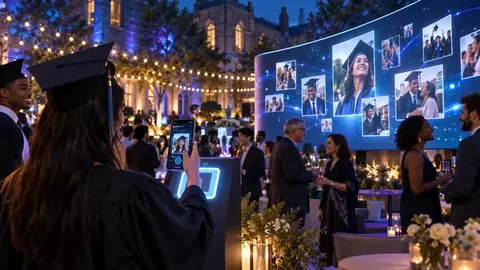
1. Choose the screen2. Put it where people can see it3. Get guests sharing4. Keep it running all night5. Approve as you goTo show guest photos on a TV at your event, open your Pixloud live wall on the TV and let guests share by QR code. Approved photos appear on the screen within seconds.
1. Choose the screen
- Smart TV: open the TV's web browser and go to pixloud.app/tv. It shows a 4-digit code. On your phone, open your event, go to Overview → Screens and enter the code. See Show the wall on your TV for Samsung, LG, Fire TV and more.
- Projector or any screen with HDMI: connect a laptop, open the live wall link and press F11 for full screen. See Show the wall on a TV, projector or LED screen.
2. Put it where people can see it
- Near the dance floor, the bar or the entrance works well: anywhere guests pass often.
- Choose a Large QR code on the wall for big rooms so people can scan it from a distance. See Place the QR code on the wall.
3. Get guests sharing
- Put table cards with the QR code on every table.
- Ask the MC or DJ to mention the wall once early on.
4. Keep it running all night
- Turn off the screensaver or sleep mode on the TV or laptop.
- Check the internet: the wall needs a connection. A phone hotspot is a good backup.
- If you show voice notes out loud, click the wall once so the browser allows sound.
5. Approve as you go
Nothing appears until you or a helper approves it, so keep Moderate open on your phone. See Approve, reject and feature posts.